Connect Google Search Console to Claude Code using the GSC MCP server
.jpg)

TL;DR. You can connect Google Search Console to Claude Code in about 15 minutes using a free open-source MCP server and a Google Cloud service account. Create the service account, download its JSON key, add its email to your Search Console property, then register the server with claude mcp add gsc -s user. Restart Claude Code and list your properties to confirm it worked before you trust any numbers. Once it runs, you can schedule it to analyse performance on a weekly cron and hand you a page-refresh list without opening a dashboard.
A Google Search Console MCP server is a small local program that lets an AI assistant read your Search Console data directly. It is not a hosted analytics tool and it does not store anything: it passes your own credentials to Google's API and returns Google's own numbers.
Most marketers I know are moving some part of their workflow into Claude Code, Codex, or Cursor right now. The pull is speed, and the thing that actually delivers the speed is integrations, because an agent with no access to your data is just a writing assistant with opinions.
If you do SEO, Search Console is the one to connect first. It is your own data, the API is free, and every question you currently answer with a filter and an export becomes a sentence.
In this post you'll learn how to set it up in eight steps, how to verify it before you trust a number, how to schedule it to run weekly without you, and how to fix the four errors that account for nearly every failed setup.
I ran all of this. Every command below is one I executed, and the outputs are what came back.
What a Google Search Console MCP server does
MCP stands for Model Context Protocol, a standard way for AI tools to reach outside data sources.
The server runs on your machine. When you ask Claude Code about search performance, Claude calls that program, the program calls Google's Search Console API with your credentials, and real numbers come back. Nothing is hosted by anyone else, and the only company seeing the request is Google.
The practical difference is what a question costs you.
For example, "which queries sit on page two with more than 50 impressions" is a filter, a date change, an export, and a sort in the Search Console UI. Call it three minutes. In Claude Code it is one sentence, and the follow-up ("now show me which of those are blog posts") is another sentence rather than starting the whole sequence again.
Most people stop at the first export, not because they ran out of questions but because the second one costs as much as the first. That's the part that changes here.
On my own work the honest number is about five times faster for data research. Not for writing, not for deciding what to do about it, just for the part where you go from a question to the numbers that answer it. That sounds like a small category until you count how much of an SEO week is spent there.
What you need before you start
Everything on this list is free except the Claude subscription you already have:
A Google Cloud account
The Search Console API, enabled on a project
The MCP server, which is open source
Claude Code
Owner access to the Search Console property
About 15 minutes, once
Owner access is the one that blocks people. You need it on the property to grant the service account permission, so if the site belongs to a client, they run step 6 on their side and you never touch their account.
Google does not charge you to read your own data, so there is no ongoing cost after setup.
How to connect Google Search Console to Claude Code
Eight steps. The first six happen in a browser, the last two in your terminal.
1. Create a Google Cloud project
- Go to console.cloud.google.com.
- Open the project dropdown at the top of the page.
- Click New Project and name it something you'll recognise in six months.
- Click Create and wait for it to provision.
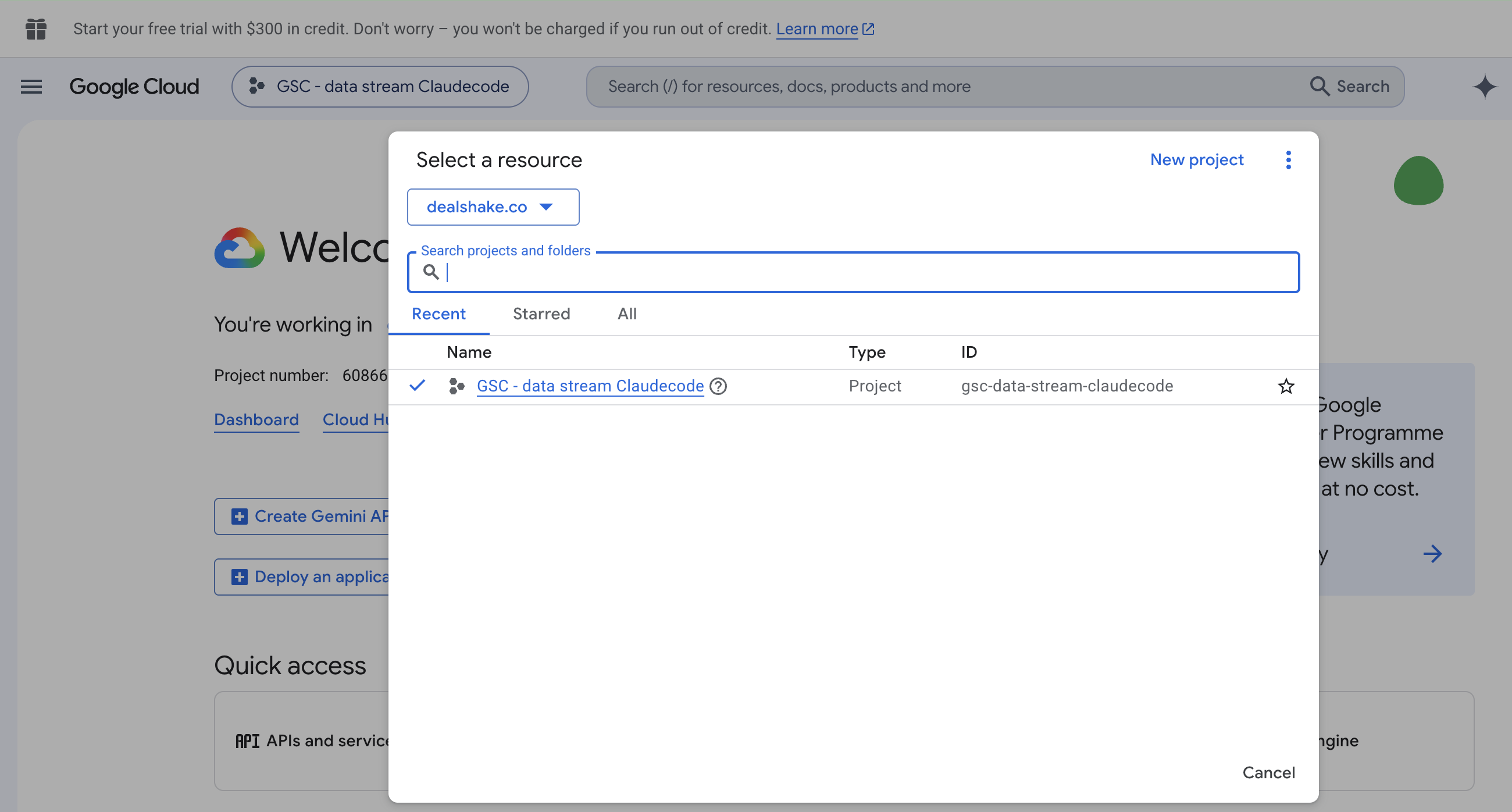
The project is only a container for API access. It costs nothing and you never return to it after these steps.
2. Enable the Search Console API
- With your new project selected, type Google Search Console API into the search bar at the top.
- Open the result.
- Click Enable.
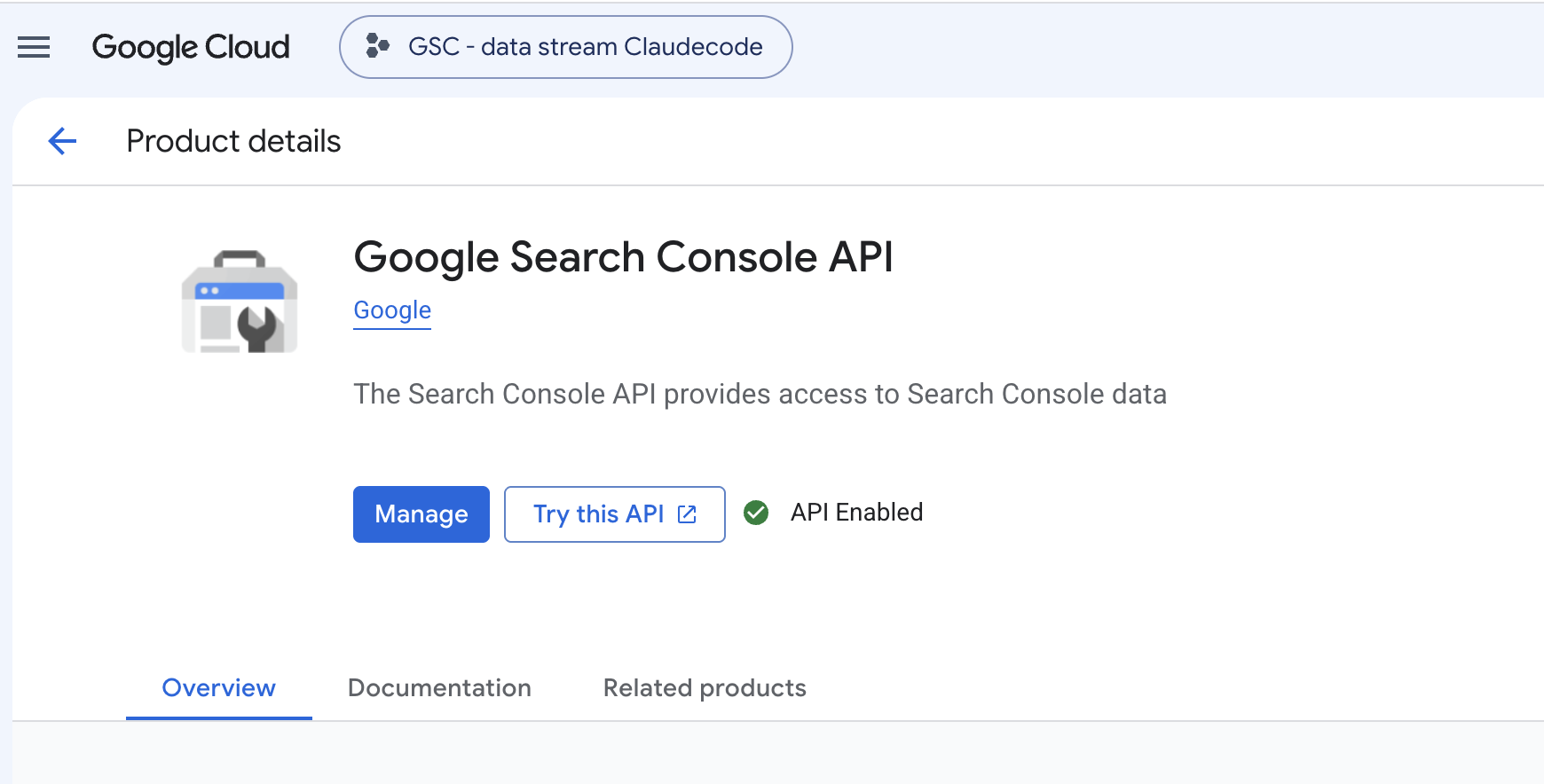
Skip this step and every later step still appears to succeed, right up until Claude returns an empty list with no explanation.
The button reads Enable before you click it and Manage afterwards. Manage means you're done.
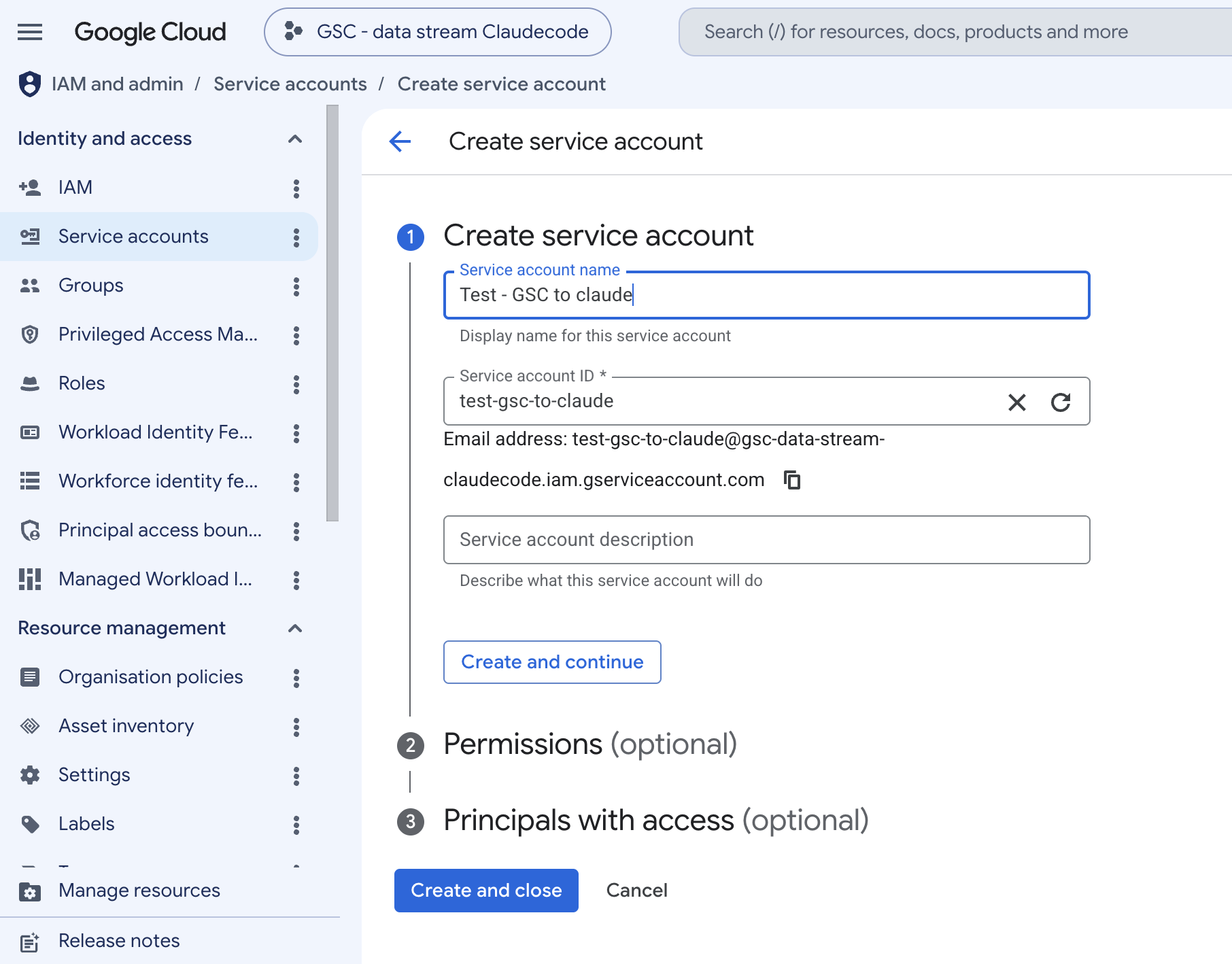
3. Create a service account
Go to APIs & Services → Credentials and click Create credentials. Pick Service account, name it something like gsc-claude, then click Create and continue.

4. Skip the permissions step
The next screen offers to grant your service account a role, with a searchable dropdown full of things like Owner and Editor.
Skip it. Click Continue, then Done.
This screen stops people because it looks mandatory. It isn't, and the roles in that dropdown are the wrong permission anyway: they control access to resources inside your Google Cloud project, which has nothing to do with your Search Console data. The permission that matters gets granted in step 6, inside Search Console.
Sidenote. If you already clicked a role in here, no harm done. It grants project access you won't use. You can remove it later under IAM, or leave it.
5. Download the JSON key
- On the Credentials page, click the service account you just made.
- Open the Keys tab.
- Click Add key → Create new key.
- Choose JSON and click Create.
The file downloads immediately. Move it somewhere stable and lock it down:
mkdir -p ~/.gsc
mv ~/Downloads/your-downloaded-key.json ~/.gsc/service-account-key.json
chmod 600 ~/.gsc/service-account-key.json
While you're on this page, copy the service account email. It looks like test-gsc-claude@your-project.iam.gserviceaccount.com and you need it in the next step.
Pro tip. Treat this file like a password, because it is one. It grants access to your Search Console data on its own, with no second factor. Keep it out of any folder that syncs to a git repository. Adding *.json to a .gitignore after the fact does not help if it's already committed.
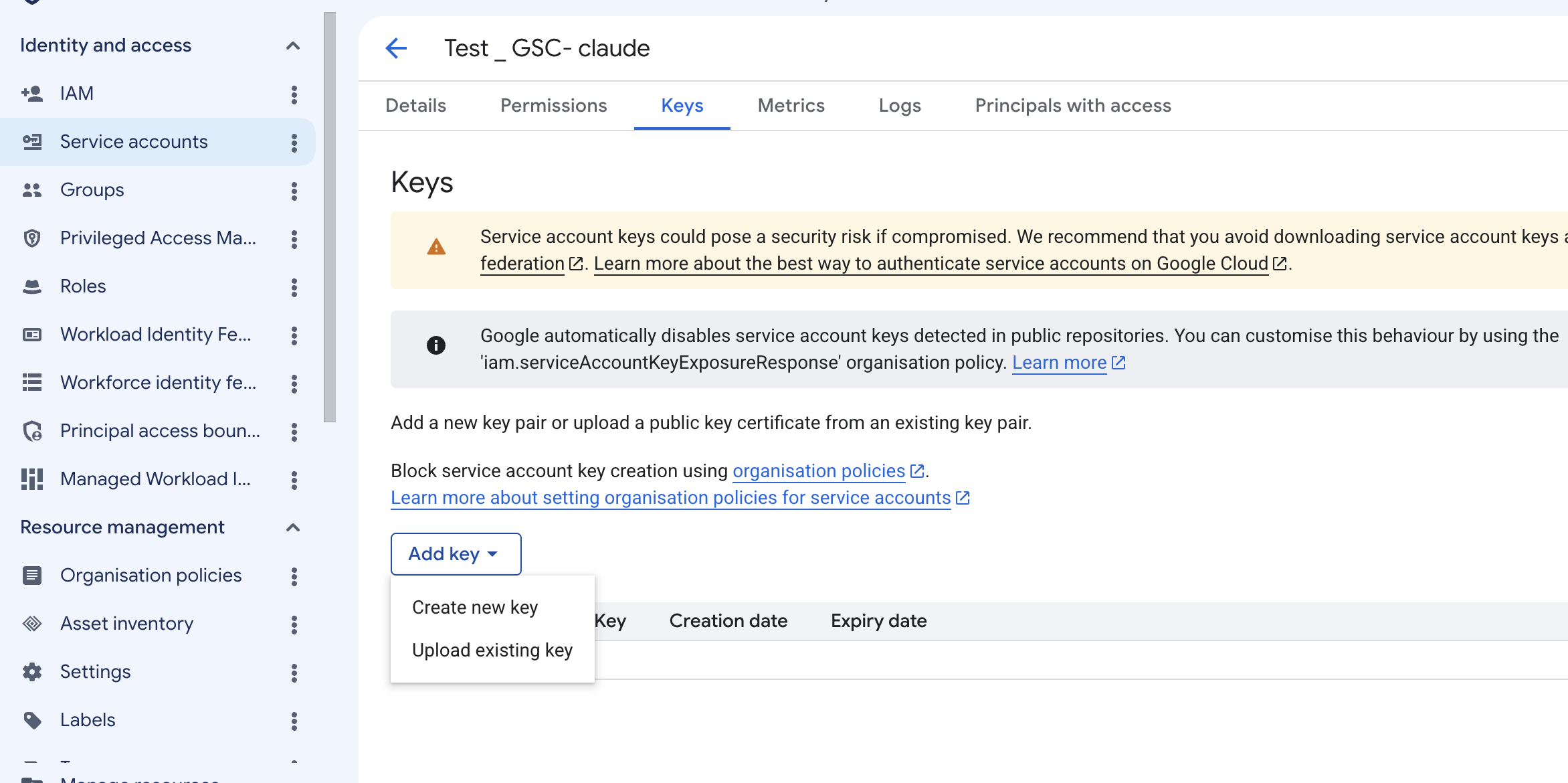
Choose JSON, not P12. P12 is a legacy format the MCP server can't read.
6. Add the service account to Search Console
This is the step that joins the two halves. Everything before now created an identity. This gives it permission.
- Open Google Search Console.
- Select your property.
- Go to Settings → Users and permissions.
- Click Add user.
- Paste the service account email and set permission to Full.
- Click Add.
Downloading the key and granting access are separate things, and doing one does not imply the other. For example, if you only add the email, the server authenticates fine and Google returns an empty property list, which looks identical to a broken install. If you only download the key, you get the same empty list. Same symptom, two different causes, which is exactly why step 8 exists.
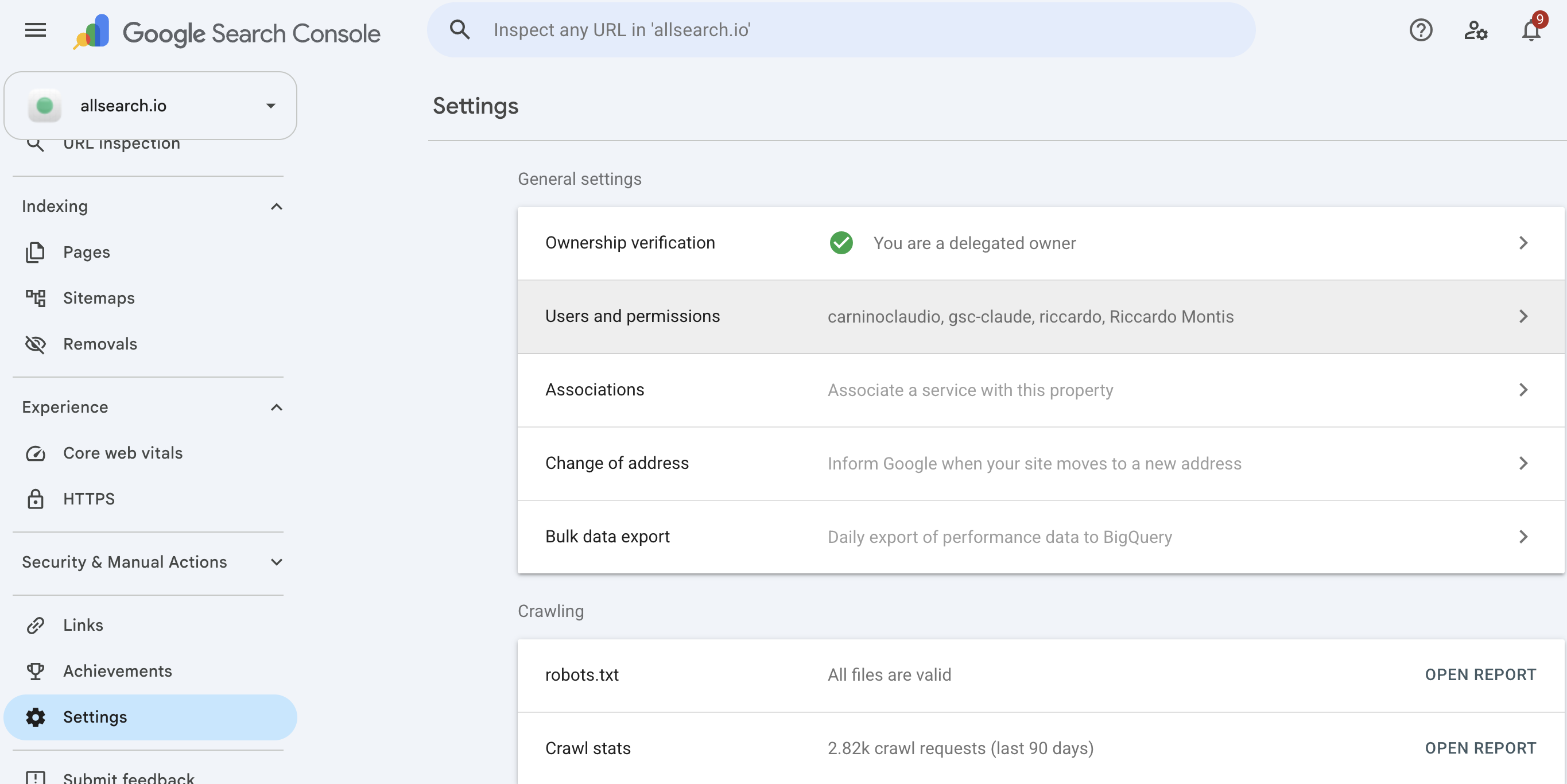
Restricted works for reading performance data. Pick Full only if you also want URL inspection and sitemap submission.
7. Register the server with Claude Code
Here's how. One command:
claude mcp add gsc -s user \
  --env GOOGLE_APPLICATION_CREDENTIALS=/Users/you/.gsc/service-account-key.json \
  -- npx -y mcp-server-gsc
Use an absolute path for the credentials file. A ~ won't reliably expand once the server launches as a subprocess.
The -s user flag is the part worth slowing down for, because scope defaults to local. Local registers the server only for the directory you happened to be standing in when you ran the command. Open Claude Code in any other folder and the tools are simply absent, with no error explaining why.
Pro tip. Run claude mcp list after this. If gsc isn't in the output, the command didn't land, and you'll save yourself debugging a config that was never written.
8. Verify before you trust it
Claude Code loads MCP servers at startup, so quit and reopen it. The tools won't appear otherwise, however correct your config is.
Then prove the connection works before relying on a single number. Ask Claude to list your Search Console properties. A working setup returns this shape:
{
  "siteEntry": [
    { "siteUrl": "sc-domain:example.com", "permissionLevel": "siteFullUser" },
    { "siteUrl": "https://example.org/", "permissionLevel": "siteFullUser" }
  ]
}
Check two things: your property is listed, and its permission level reads siteFullUser rather than something restricted.
This takes ten seconds and I wouldn't skip it. Every failure mode in this setup produces the same symptom, which is Claude reporting no data. An empty list tells you the problem is access rather than the query you just wrote, and that distinction saves you from debugging an analysis when the real fault was step 6.
Note the two property formats in the output. Both are valid, and the troubleshooting section explains why it matters which one you use.
What to ask it once it's running
Any one of these you could get from the Search Console UI with enough clicking. The reason to bother is that the second and third question cost nothing, so you actually ask them.
Worth asking:
- Which queries sit between positions 4 and 15 with meaningful impressions
- Which pages lost the most clicks over the last 28 days, and whether position or CTR moved
- Which queries earn impressions on page one but almost no clicks
- Whether two pages compete for the same query
- Which queries return impressions while the site ranks beyond position 20
For example, that third question is the one I've got the most out of. Ranking well and getting no clicks is close to invisible in a normal Search Console session, because you have to notice the absence of something. Ask for it directly and it surfaces in seconds: a cluster of queries sitting at position 4 with hundreds of impressions and a click count near zero, which is a title and meta problem rather than a rankings problem. Those two problems need completely different fixes, and the second one is cheaper.
Sidenote. Ask for the numbers, not the conclusion. "Which pages lost clicks" gets you data. "Why did my traffic drop" invites a guess, and the model has no access to your release history, your competitors' changes, or Google's update schedule.
Schedule it to run without you
This is where the setup stopped being a convenience for me and started being worth the fifteen minutes.
Once the MCP server is registered at user scope, Claude Code can run non-interactively with the -p flag, which means a scheduler can drive it. I have a job that runs once a week, pulls the last 28 days from Search Console, and returns a short list of pages worth refreshing with the reason attached to each one: lost position, collapsed CTR, or decaying impressions.
The value is not that it finds things I couldn't. It's that it looks every week, and I don't. Content decay is the sort of problem that never makes it to the top of a Monday list, because nothing is on fire and the page still ranks. A standing job is how it gets noticed at all.
The cron approach
The most portable version is your operating system's scheduler calling Claude Code in headless mode:
# Every Monday at 8:57am. Off-minute on purpose, see the note below.
57 8 * * 1 cd ~/seo && claude -p "Pull the last 28 days from Search Console for sc-domain:example.com. Compare against the previous 28 days. List the 10 pages with the largest click losses, and for each one say whether position moved, CTR moved, or impressions fell. Return a markdown table. State the exact date ranges you used." >> ~/seo/weekly-gsc.md
Three things make this work rather than produce noise:
- Name the property explicitly. Don't make it guess which site you mean.
- State the date logic in the prompt and ask it to report the ranges back, so you can tell at a glance whether it queried the period you meant.
- Ask for a diagnosis per row, not a ranked list. "Which pages lost clicks" is a list. "Which pages lost clicks and whether position or CTR caused it" is something you can act on.
Sidenote. Pick an off-minute like 57 8 rather than 0 9. Everyone schedules on the hour, and you gain nothing by joining them.

Claude Code also has scheduled agents, which run on a cron without you keeping a machine awake. That's the better path if the job needs to survive your laptop being shut, and the worse one if your credentials only exist locally, which is the case with the service-account file from step 5.
One thing worth knowing: cron jobs created inside a Claude Code session live only in that session and expire after seven days. Those are for short-lived polling, not for a standing weekly report. For anything you want running next month, use the operating system scheduler or a scheduled agent.
Feeding it into monthly reporting
I've been pushing the weekly outputs into monthly internal reports, and I'll be honest that this part is still being tuned. Getting the level of detail right is the hard bit. Raw query dumps are useless to anyone who isn't me, and a three-line summary throws away the reason anyone would act.
Where it has landed so far: the weekly job writes to a running markdown file, and at month end a second pass reads the accumulated file and writes the summary. That works better than asking for a monthly report in one shot, because the model is summarising evidence it already collected rather than re-querying four weeks of data and hoping the date maths holds.
It's not finished. It is already better than the version where I rebuilt the same export by hand every month.
Adding a second Search Console property
Nothing to reinstall. The service account is already authenticated, so granting it another property is one step:
- Open the other property in Search Console.
- Go to Settings → Users and permissions → Add user.
- Paste the same service account email.
That's all of it. You don't generate a new key, you don't touch the config, and you don't restart anything. The property shows up the next time Claude lists your sites.
For anyone running several sites, that's the entire per-client setup: one email into one dialog. The only requirement is Owner access on that property, so for a client's property you send them the address and they add it themselves.
What the data can and can't tell you
Three limits are worth knowing before you draw conclusions.
Sixteen months, then it's gone. Search Console deletes data older than 16 months and no API flag recovers it. Year-over-year comparisons beyond that window require that you were already exporting.
The last few days are incomplete. The API returns finalised data, typically running two to three days behind. Ask for "the last seven days" and get a suspiciously quiet Friday, and the data probably hasn't landed rather than traffic having collapsed. I end date ranges two days before today out of habit.
Row limits apply. The API caps at 25,000 rows per request, well above the 1,000 the UI exports, but a broad query on a large site still gets truncated. Filter before you aggregate.
Then there's the model itself. The MCP server cannot invent numbers, because it's a pipe to Google's API returning exactly what Google sends. Claude's interpretation is where drift happens: rounding a figure, or attributing a traffic drop to an algorithm update it has no evidence for.
Dates are the most common failure. Ask for "last month" and a model may reach for a date from its training data instead of the actual calendar, then return real API data for the wrong period. That's the dangerous version, because the numbers are genuine and the question they answer isn't the one you asked. It's also the main reason the scheduled prompt above asks it to state the date ranges it used.
The fix is unglamorous. State explicit date ranges rather than relative ones, and when a number is going into a report, ask to see the raw tool output it came from.
Troubleshooting
Four errors account for nearly every failed setup.
No tools appear at all. Either you didn't restart Claude Code, or you registered at local scope and have since changed directory. Run claude mcp list to see what's actually registered.
Claude can't find your property. Search Console has two property types and the API is strict about the string:
Property typeCorrect formatCommon mistakeDomainsc-domain:example.comPassing https://example.com/URL-prefixhttps://example.com/Dropping the trailing slash
Listing your sites returns the exact strings, so copy from there rather than typing them.
An empty site list. The service account email was never added in Search Console, or it was added to a different property than the one you're querying. Open the JSON key, find client_email, and confirm that exact address appears under Users and permissions.
spawn npx ENOENT. The process can't find npx on its PATH, which is common on macOS when Node is installed through a version manager. Run which npx and use the absolute path it returns.
Which GSC MCP server to use
I used mcp-server-gsc because it's small, it's TypeScript so npx handles it with no environment to manage, and it does what I needed. It isn't the only option.
ServerAuthUpsideDownsidemcp-server-gsc (ahonn)Service account25,000-row limit, no runtime to installFewer tools than the alternativesAminForou/mcp-gscOAuth or service accountThe most tools of the open-source optionsPython, so expect a virtual environmentHosted servicesOAuth, managedNo Google Cloud step at allPaid, and a third party sits between Claude and your data
If you'd rather skip the Cloud Console entirely and don't mind a subscription, the hosted services are a legitimate shortcut. You trade about 15 minutes of setup for a monthly fee and a third party holding your Google credentials. Whether that's a good deal depends mostly on how much you dislike the Cloud Console.
I'd rather do it once and keep the credentials on my own machine, but I understand the other view. Step 4 of this guide exists because that console is genuinely confusing.
FAQs
Does Google Search Console have an official MCP server?
No. Google doesn't publish one. Every available option is either community-built and open source or a commercial hosted service. They all use the same public Search Console API underneath, so the data is identical and the difference is tooling and setup.
Can I use this with Claude Desktop instead of Claude Code?
Yes. The Google Cloud half is identical through step 6. Instead of claude mcp add, you edit Claude Desktop's config through Settings → Developer → Edit Config and add the server as a JSON block with the same credentials path. Claude Code's advantage is the one-line command, no JSON editing, and headless mode for scheduling.
Can I schedule Claude Code to check Search Console automatically?
Yes. Claude Code runs non-interactively with the -p flag, so any scheduler can drive it. A weekly cron entry calling claude -p with an explicit prompt and property name will pull the data and append the output to a file. Name the date ranges in the prompt and ask it to report them back, so you can confirm it queried the period you meant.
Is the Google Search Console MCP free?
The server is open source and free. Google doesn't charge for Search Console API access to your own properties. The only cost is your existing Claude subscription and about 15 minutes of setup.
Do I need a Google Cloud project for this?
For the self-hosted route, yes. The Cloud project issues the credentials that authenticate against the Search Console API. Hosted services avoid it by running their own Google app and handling authentication for you, which is most of what you're paying for.
How do I add a second Search Console property?
Add the same service account email as a user on the other property in Search Console, with Full permission. No new key, no config edit, no restart. You need Owner access on that property to grant it.
Why can't Claude find my property?
Almost always the property string. Domain properties take the form sc-domain:example.com while URL-prefix properties take https://example.com/ with the trailing slash. Ask Claude to list your sites and copy the exact string it returns.
Where does Claude Code store the MCP config?
Servers added with -s user are written to ~/.claude.json. Local-scope servers are stored per directory, and project-scope servers live in the repository so they can be committed. Running claude mcp list shows what's currently registered.