
.jpg)

TL;DR A Google Analytics MCP server is a small local program that lets an AI assistant read your GA4 data directly. It is not a hosted reporting tool and it does not store anything: it passes your own credentials to Google's Analytics APIs and returns Google's own numbers.
I wrote a guide a while back on connecting Search Console to Claude Code, and the question I got back most often was the obvious one. What about Analytics?
Fair question. Search Console tells you how people found you. Analytics tells you what they did next. Neither one answers a real question on its own, and switching between two tabs to join them by hand is most of what monthly reporting actually is. But the good news: if you already set up Search Console with that guide, you can skip straight to step 2 of this one. You already have a Google Cloud project and a service account. You just need to enable two more APIs, add the same email to GA4, and install the server. That's a four-minute job instead of fifteen.
There's one useful difference between the two setups. Search Console has no official MCP server, so you're picking between community projects. Google publishes the Analytics one themselves, which removes the part of the decision most marketers are least equipped to make. And because Google publishes both the server and the APIs, you can reuse one credential across both one service account, one JSON key, two services, two Claude Code servers, one login flow in your reporting.
In this post you'll learn how to set it up in nine steps, how to verify it before you trust a number, how to schedule it to run weekly without you, and the GA4 data limits that will quietly give you wrong answers if nobody tells you about them.
I ran all of this. Every command below is one I executed, and the outputs are what came back.
How to connect Google Analytics to Claude Code
Nine steps. The first six happen in a browser, the last three in your terminal.
Already did the GSC setup?
Skip steps 1, 3, 4, and 5. You already have a service account email and JSON key. That same email works for both GSC and GA4 one service account can grant access to multiple Google services at once. You don't create a second account. Here's the four-minute path: Enable the two Analytics APIs on your existing Google Cloud project (step 2), add the same service account email to your GA4 property (step 6), install the analytics-mcp server (step 7), register it with Claude Code (step 8), and verify it works (step 9). This is why to set up both servers: Search Console tells you how people found you, Analytics tells you what they did next, and they share one credential setup. One service account, one JSON key, two servers, two tabs of data joined at the hip.
1. Create a Google Cloud project
- Go to
console.cloud.google.com - Open the project dropdown at the top
- Click New Project and name it
- Click Create and wait for provisioning
The project is only a container for API access. It costs nothing and you never return to it after these steps.
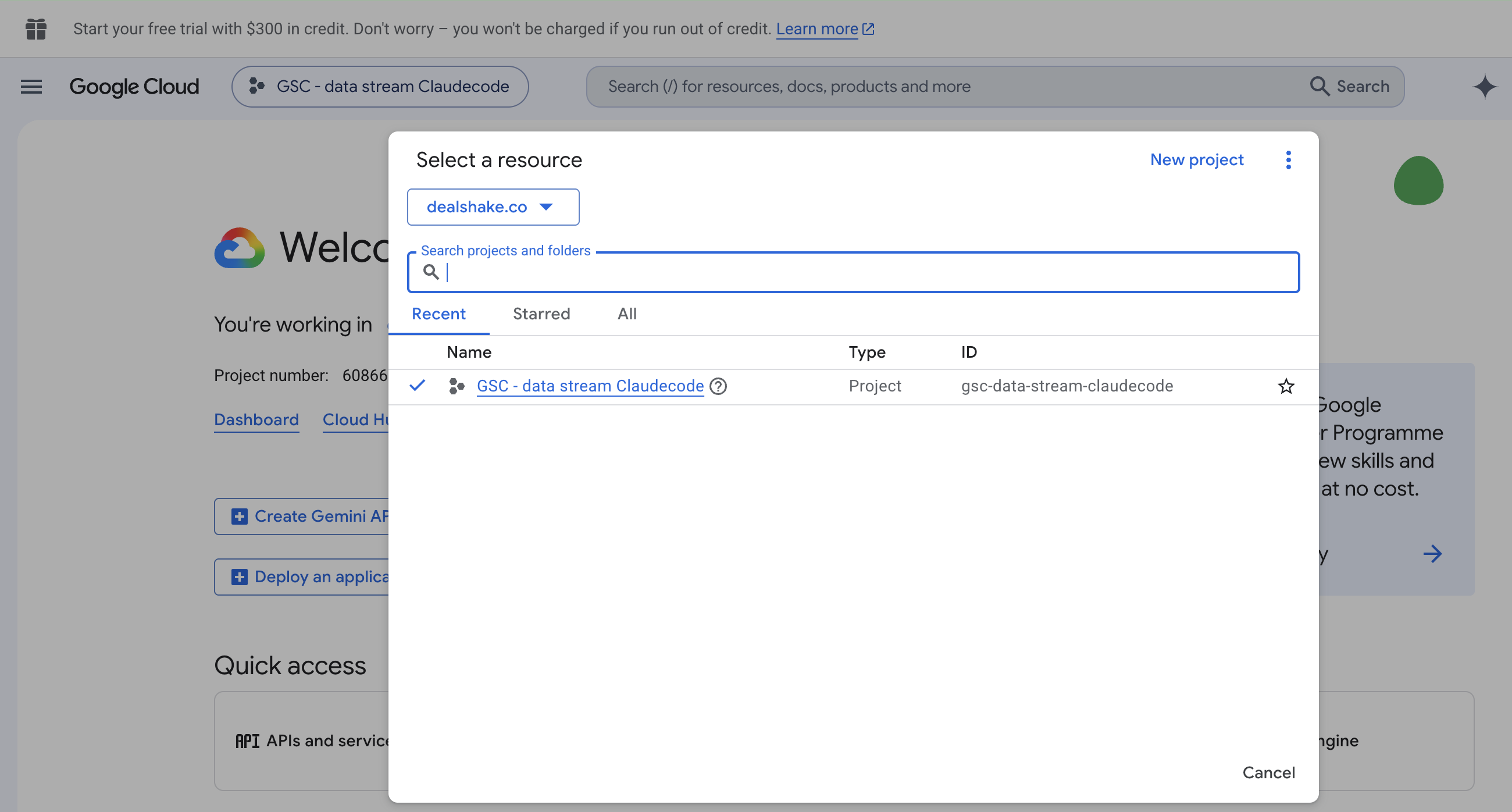
2. Enable the two Analytics APIs
This is where GA4 differs from Search Console, and it's the single most common reason a setup half-works.
Search Console needs one API. Analytics needs two. If you already enabled the Search Console API on your project, you're not done yet. GA4 requires both the Data API and the Admin API. Both are specific to Analytics; the Search Console API is separate.
Open each link and click Enable. They're pre-scoped to your existing GSC project:
- Google Analytics Data API this is the one that reads reports
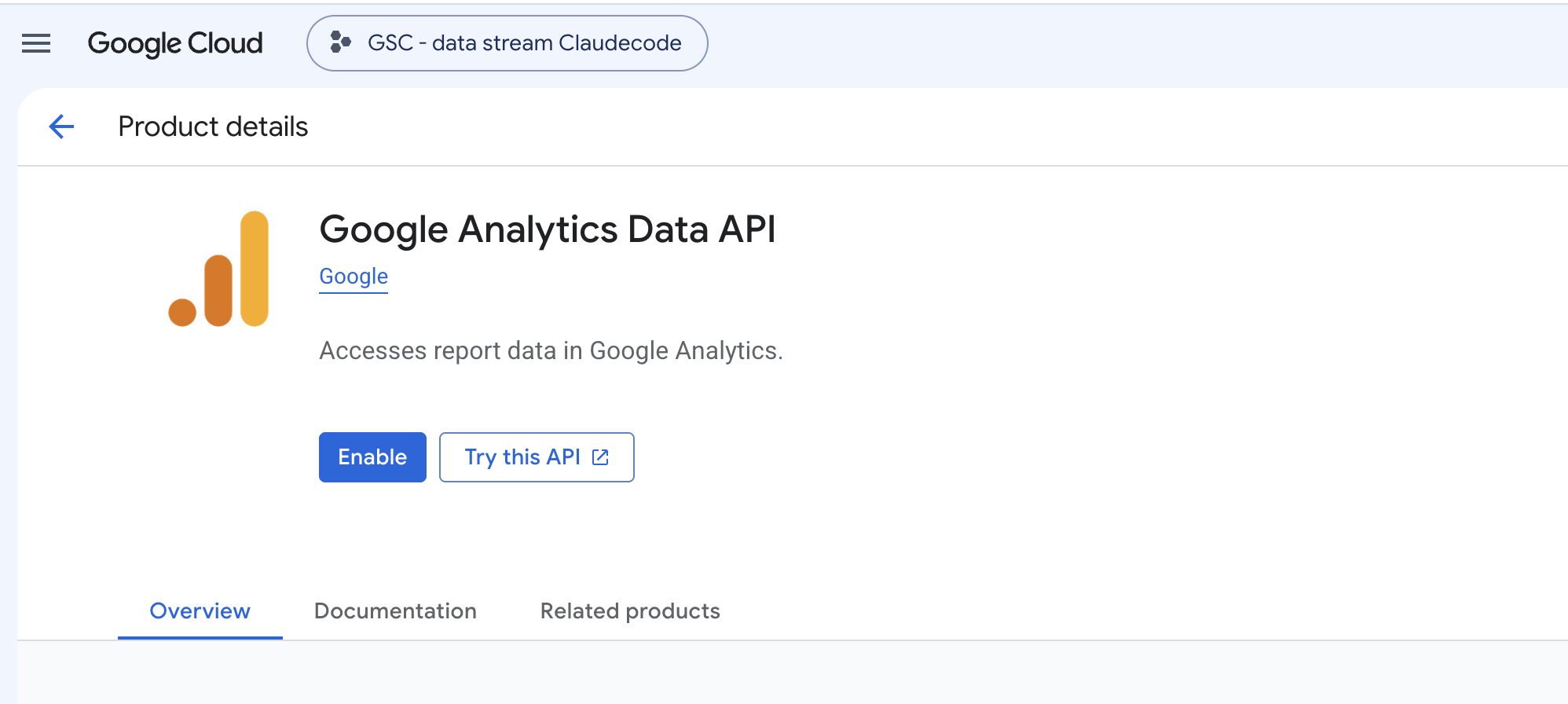
- Google Analytics Admin API lets it find your properties without you hardcoding an ID
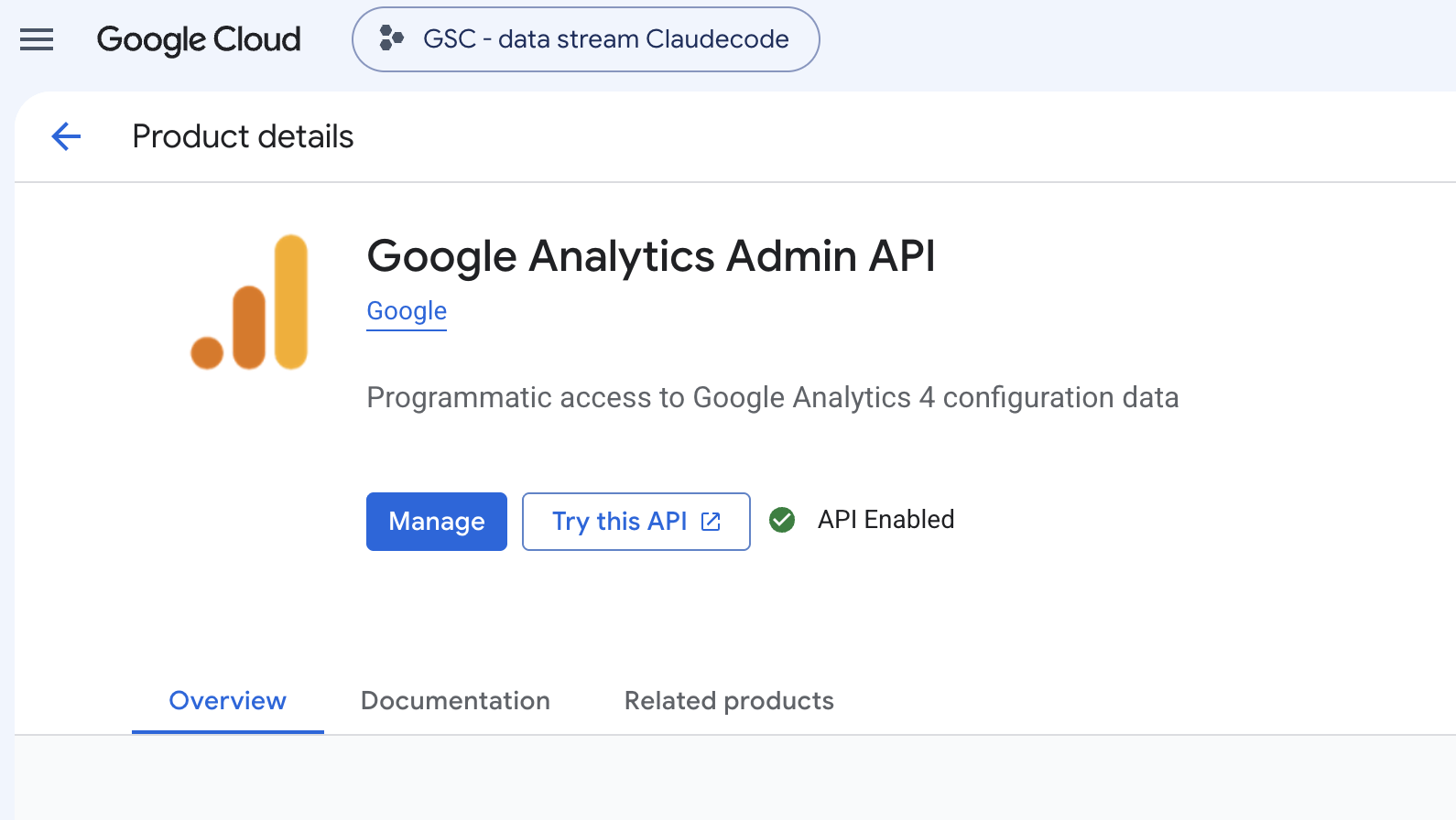
The Data API is what returns your reports and metrics. The Admin API is what lists which properties you have access to, so the server can discover your properties without you hardcoding an ID into the config. Without the Data API, you can authenticate but get no numbers. Without the Admin API, you can authenticate but Claude can't find which properties the service account can see.
Enable only the Data API and everything appears to work until Claude tries to find your property and comes back with nothing. Enable only the Admin API and Claude can list your properties but cannot read a single number from them. Both must be enabled, or the server fails at different points but with the same symptom: Claude reporting no data.
3. Create a service account
If you already created a service account for Search Console. Use that same one—no need for a second account. A single service account can grant access to multiple Google services (Search Console, Analytics, etc.).
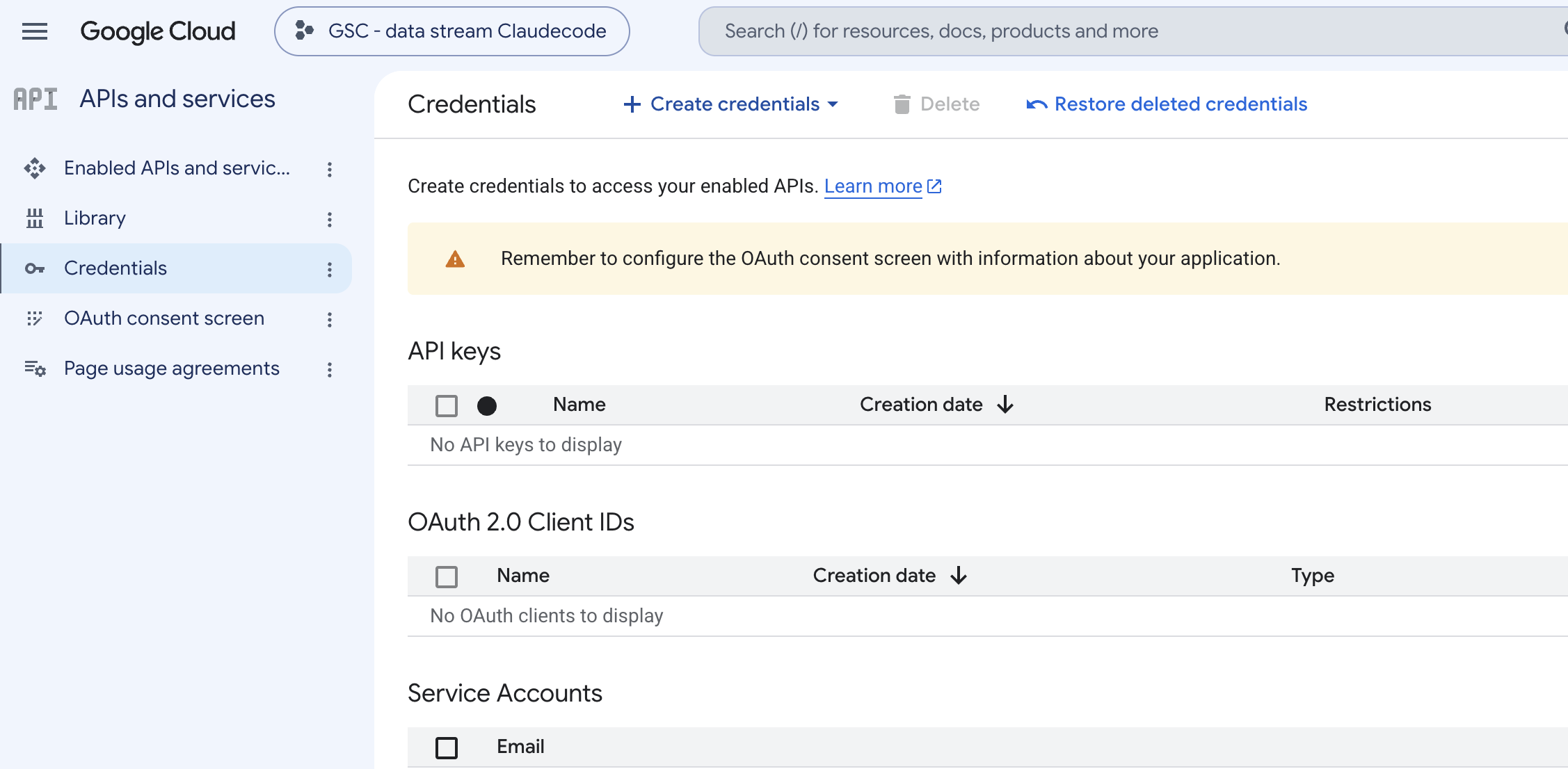
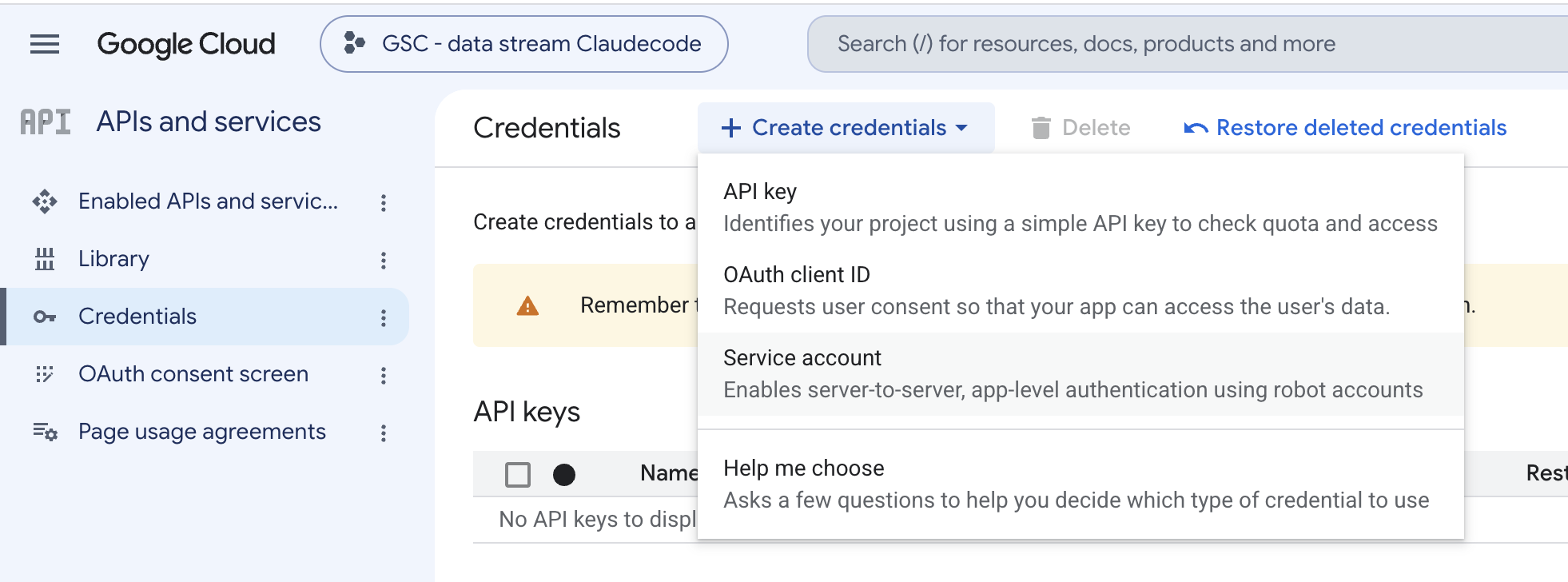
Otherwise, go to APIs & Services → Credentials and click Create credentials. Pick Service account, name it ga4-claude, then click Create and continue.
4. Skip the permissions step
The next screen offers to grant your service account a role, with a searchable dropdown full of things like Owner and Editor.
Skip it. Click Continue, then Done.
This screen stops people because it looks mandatory. It isn't, and the roles in that dropdown are the wrong permission anyway: they control access to resources inside your Google Cloud project, which has nothing to do with your Analytics data. The permission that matters gets granted in step 6, inside GA4.
5. Download the JSON key
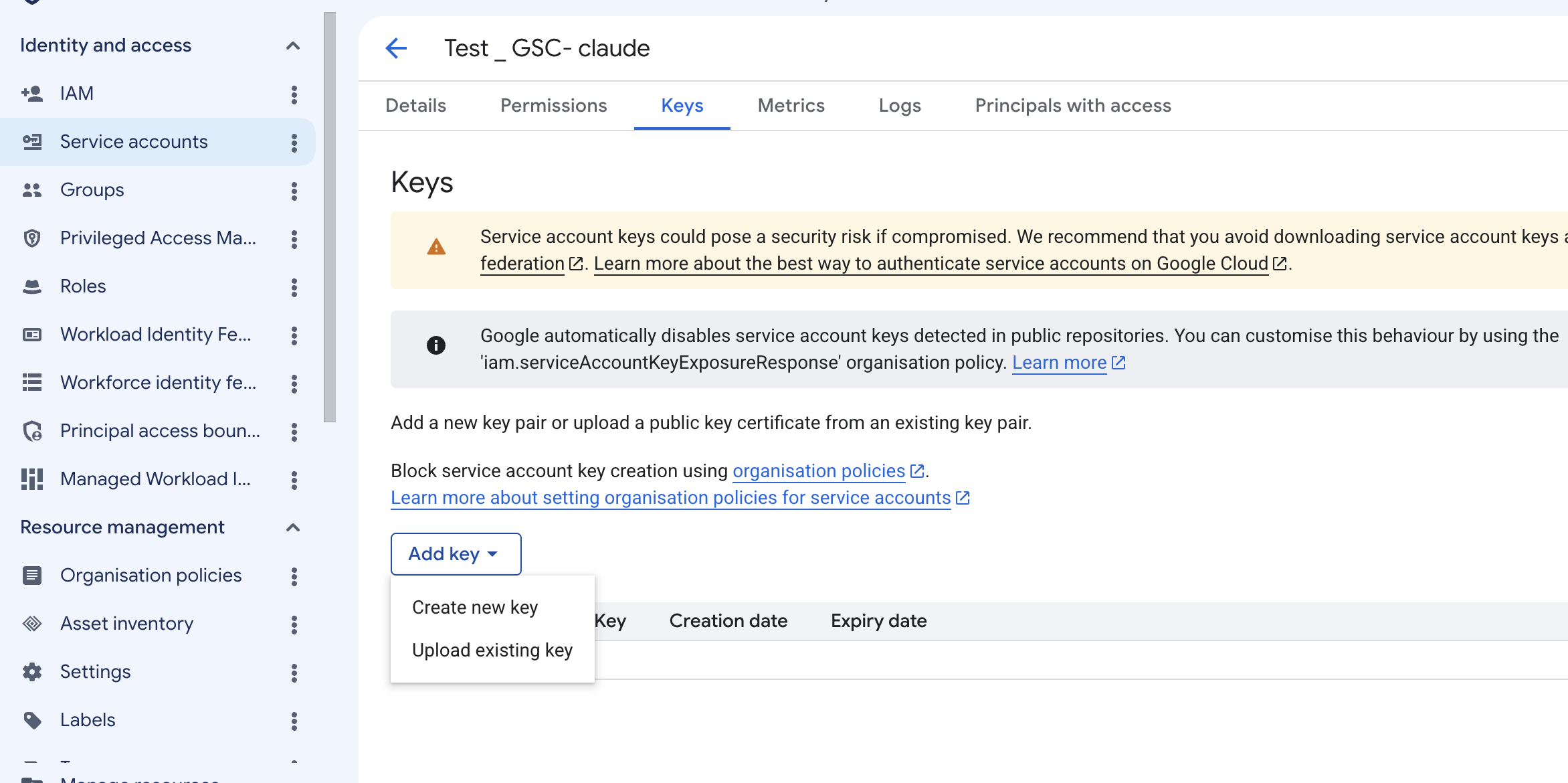
On the Credentials page, in google cloud:
- Click the service account you just made
- Open the Keys tab
- Click Add key → Create new key
- Choose JSON and click Create
Move it somewhere stable:
mkdir -p ~/.ga4mv ~/Downloads/your-key.json ~/.ga4/service-account-key.jsonchmod 600 ~/.ga4/service-account-key.json
While on this page, copy your service account email.
(Use your server account email) i looks like ga4-claude@your-project.iam.gserviceaccount.com and you need it next.
If you already have a Search Console key from the sister guide, you're copying the same email address the service account applies to both projects once you grant it access in each one.
Treat this file like a password, because it is one. It grants access to your Analytics data on its own, with no second factor. Keep it out of any folder that syncs to a git repository. Adding *.json to a .gitignore after the fact does not help if it's already committed. The same rule applies whether you're using one key for Search Console and Analytics, or separate keys—keep them off GitHub entirely.
6. Add the service account to your GA4 property
- Open
analytics.google.com - Click Admin (gear icon, bottom left)
- Check the Property column — it should show the property you want
- Click Property access management
- Click the blue +, then Add users
- Paste the service account email
- Untick "Notify new users by email" (it's a robot)
- Set role to Viewer
- Click Add
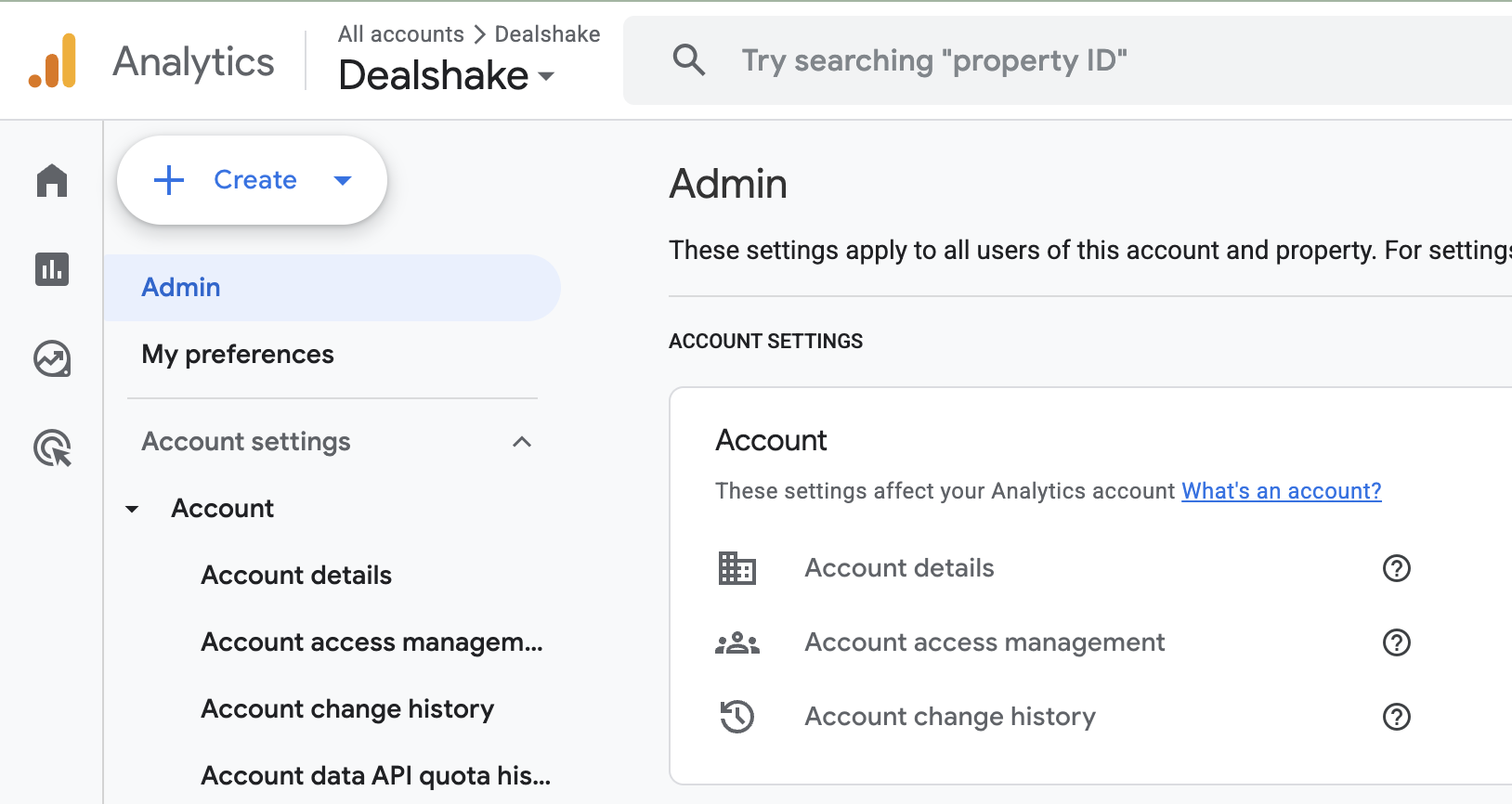
Property access managementis the right place.Account access management(the similar-looking button next to it) grants too much access across every property. PickProperty level.
Two common mistakes here:
1. Account access management is not the same screen as Property access management. They sit next to each other in Admin and the dialogs look almost identical. Account-level access does technically work, and it grants the service account permission across every property in that account (not just one). Property-level access is what you want—it's more restrictive and correct for this setup.
2. The property selector is easy to miss. GA4 remembers whichever property you last looked at, which is not necessarily the one you're setting up. Here's what happened to me: I granted access, ran the verification in step 9, and got exactly one property back when I expected two. I had added the email to the property that happened to be selected in the dropdown, not the one I meant. The fix took thirty seconds of re-adding it to the right property. The failure (empty property list) looks identical to a broken install, so this is easy to miss.
Viewer is enough to read every report in this guide. Pick Analyst or higher only if you want the server to see annotations you've written in GA4.
7. Install the MCP server
This step you need to open you terminal.
The server is Python, not Node, so there's no npx equivalent that runs it without installing anything. The tidiest route is pipx, which installs the package into its own isolated environment and puts the command on your PATH:
brew install pipx
pipx ensurepath
pipx install analytics-mcp
That gives you a command called analytics-mcp. Confirm it landed:
which analytics-mcp
Sidenote: I did this a different way, because I didn't have pipx on the machine and didn't want to install a package manager to install a package. A plain virtual environment does the same job in two lines: python3 -m venv ~/.ga4-mcp then ~/.ga4-mcp/bin/pip install analytics-mcp. The command then lives at ~/.ga4-mcp/bin/analytics-mcp and you use that full path in the next step. Both work. pipx is cleaner if you install Python tools regularly, and a venv is fewer moving parts if you don't.
The package is analytics-mcp on PyPI, published from github.com/googleanalytics/google-analytics-mcp. That is Google's own GitHub organisation, which is worth checking yourself rather than taking my word for it, because the whole point of the official server is that you don't have to trust a stranger's code with your credentials.
8. Register the server with Claude Code
Here's how. One command:
claude mcp add ga4 -s user \ --env GOOGLE_APPLICATION_CREDENTIALS=/Users/you/.ga4/service-account-key.json \ -- analytics-mcp
Use absolute paths for both the credentials file and, if you went the venv route, the command itself. A ~ won't reliably expand once the server launches as a subprocess.
The -s user flag is the part worth slowing down for, because scope defaults to local. Local registers the server only for the directory you happened to be standing in when you ran the command. Open Claude Code in any other folder and the tools are simply absent, with no error explaining why.
Pro tip: Run claude mcp list after this. If ga4 isn't in the output, the command didn't land, and you'll save yourself debugging a config that was never written.
9. Verify before you trust it
Claude Code loads MCP servers at startup, so quit and reopen it. The tools won't appear otherwise, however correct your config is.
Then prove the connection works before relying on a single number. Ask Claude to list your Analytics properties. A working setup returns this shape:
ACCOUNT:YOUR COMPANY properties/XXX XXX XXX | YOUR COMPANY
Check two things: the property you expect is listed, and the account name is the one you meant. If the list is empty, you granted access to the wrong property in step 6.
Then ask for one number you can check by eye. I asked for sessions by channel over the last 28 days and compared it against the GA4 interface. They matched, which is the point of doing it: you are not testing whether Google's numbers are right, you are testing whether the pipe is connected to the property you think it is.
This takes ten seconds and I wouldn't skip it. Every failure mode in this setup produces the same symptom, which is Claude reporting no data. An empty list tells you the problem is access rather than the question you just wrote, and that distinction saves you from debugging an analysis when the real fault was step 6.